Play Training
Setting Up a Client in TapClicks
Number of Guide Steps: 9
First step in getting your reporting via Tapclicks is making sure the client profile is set up in the Admin section of Tapclicks with the proper billing id.
This allows any new product/tactic the run to pull in through the client's dashboard.
.jpg)
- 1. Navigate to the Clients area of the TapClicks Admin
- 2. Search For Your Client
- 3. Open the Client Info Tab
- 4. Enter Client Account #
- 5. Click Save
- 6. Create a New Client in Tap Clicks
- 7. Add Client Info
- 8. Update the Info Tab
- 9. Click Save
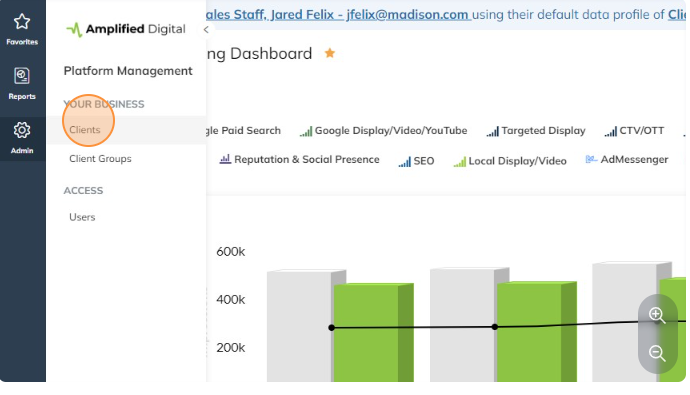
Navigate to the Clients area of the TapClicks Admin.
In the left nav Click "Admin" -> "Clients"
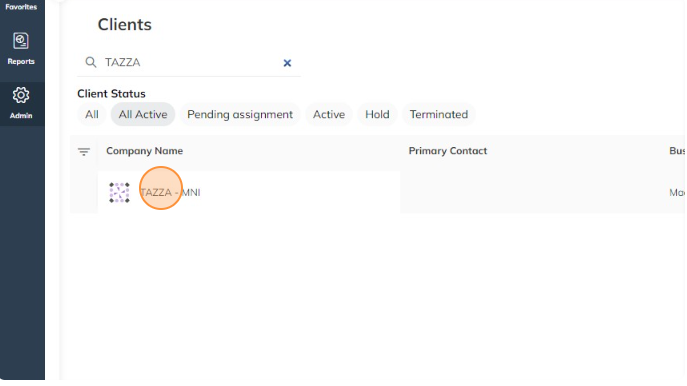
Search For Your Client.
Search for your client here. Be sure to check for all spelling/acronym options possible.
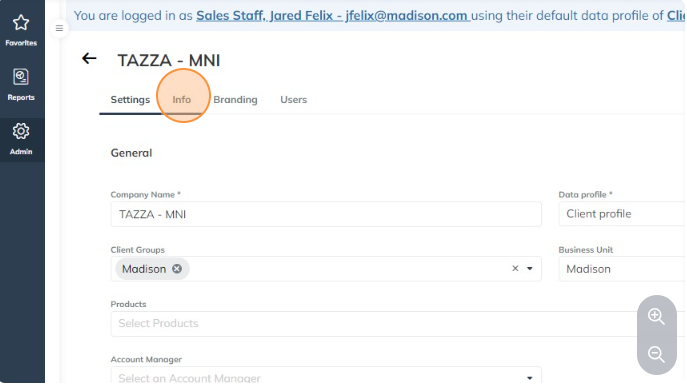
Open the Client Info Tab.
If you find them click to open and then click the Info tab
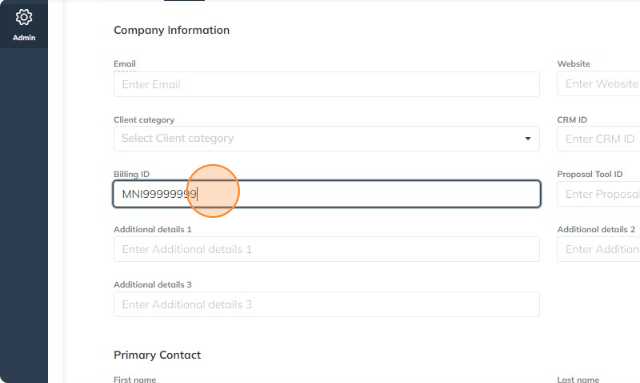
Enter Client Account #.
Make sure they have the correct "Billing ID" BillingId = Market code + Client Billing Account Number
Market Code list can be found at the link below
https://docs.google.com/spreadsheets/d/1vvaeKDNmJJpuym6zWi5LzQ5NNU2RYt1ORdVIYBw62Xo/edit?usp=sharing
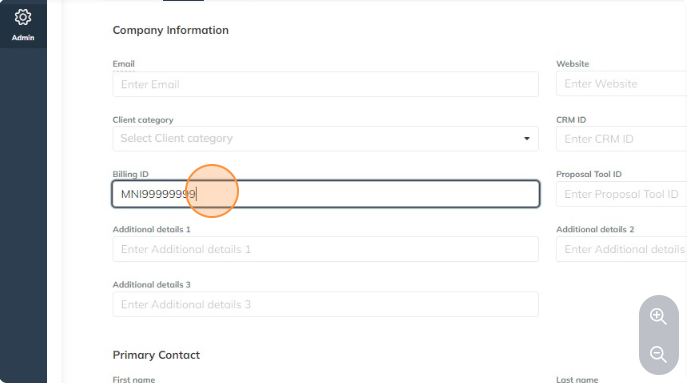
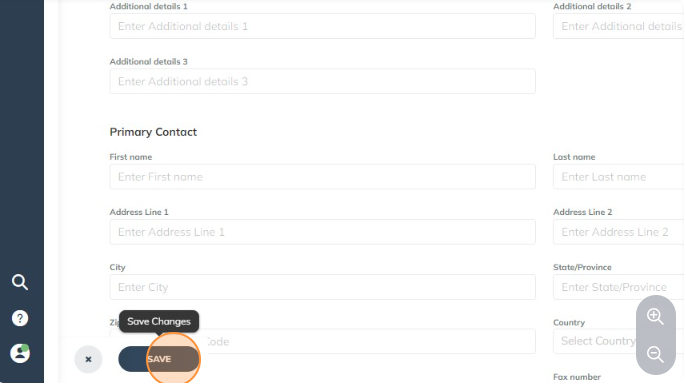
Click Save.
Click "SAVE"
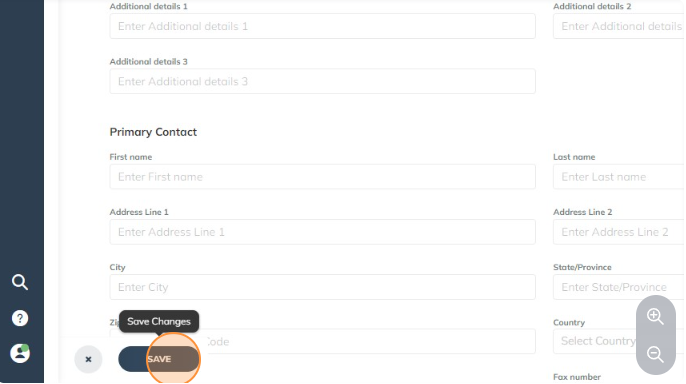
Create a New Client in Tap Clicks.
If you do not find your client, click the + sign on the Client search page
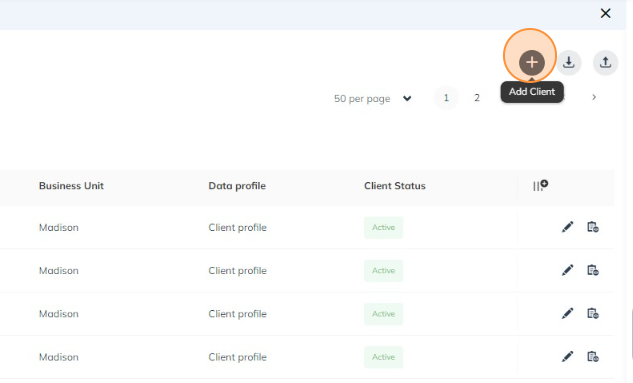
Add Client Info.
Add the client's business name appended with the market abbreviation in the "Company Name" field.
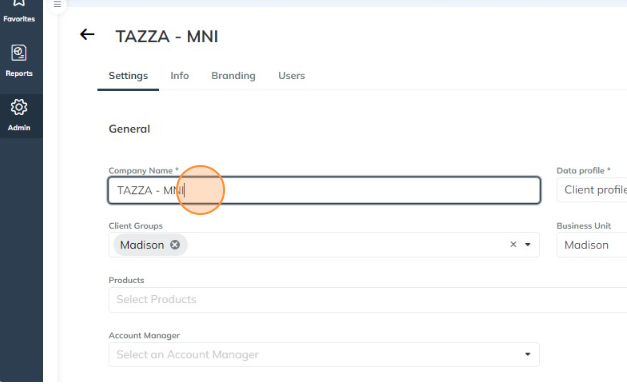
Update the Info Tab.
Enter the correct "Billing ID"Billing Id = Market code + Client Billing Account Number
Click Save.
Click "SAVE"