Play Training
How to Migrate Display, Video & Streaming Campaigns
Number of Guide Steps: 10
This guide will walk you through the process of migrating campaigns from Vision 4.0 into VX - this guide will focus on display, video and streaming campaigns.
For these campaigns, the VX management team will make a new campaign based on the information your program into VX. This new campaign will launch on the migration start date. You may need to request new GTM containers for conversion tracking.

- 1. Create a Client in VX
- 2. Create Migration Campaign
- 3. Select the Desired Target Audiences
- 4. Select the Desired Geotarget
- 5. Add the Migrated Product(s)
- 6. Edit Campaign Details
- 7. Complete Sold Order Details
- 8. Complete Final Sold Order Details
- 9. Submit to Billing
- 10. Ensure that Vision 4.0 Campaign is Set to End
Create a Client in VX.
Create a client if one doesn't already exist. Ensure all the details are accurate. If you need more information on client creation, refer to the Clients playbook.

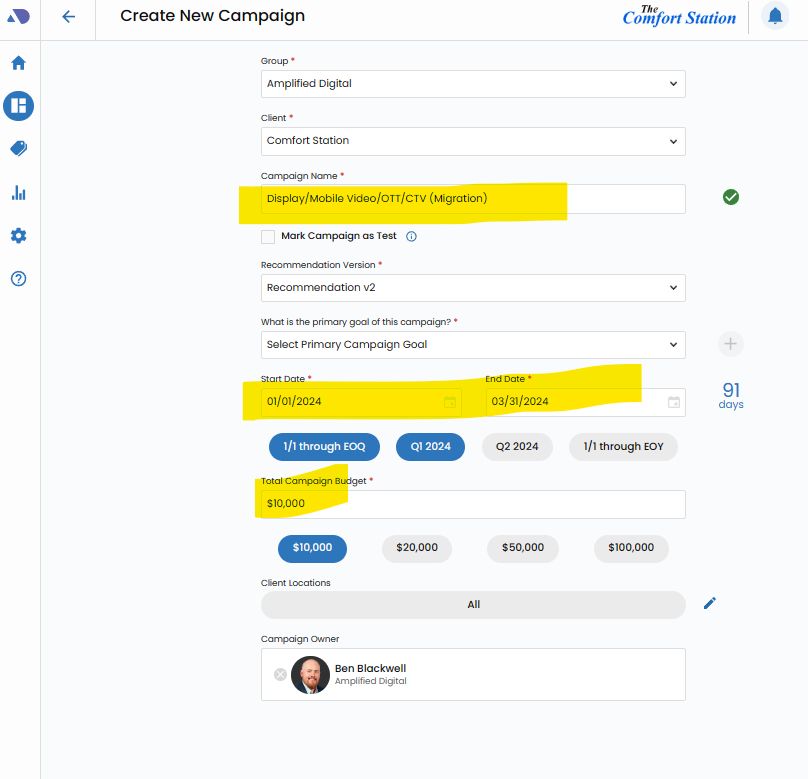
Create Migration Campaign.
Create a campaign with the words (Migration) in the title to make it clear you're migrating an already running campaign from Vision 4.0 Be sure that the details are correct. Start and end dates, and budget.
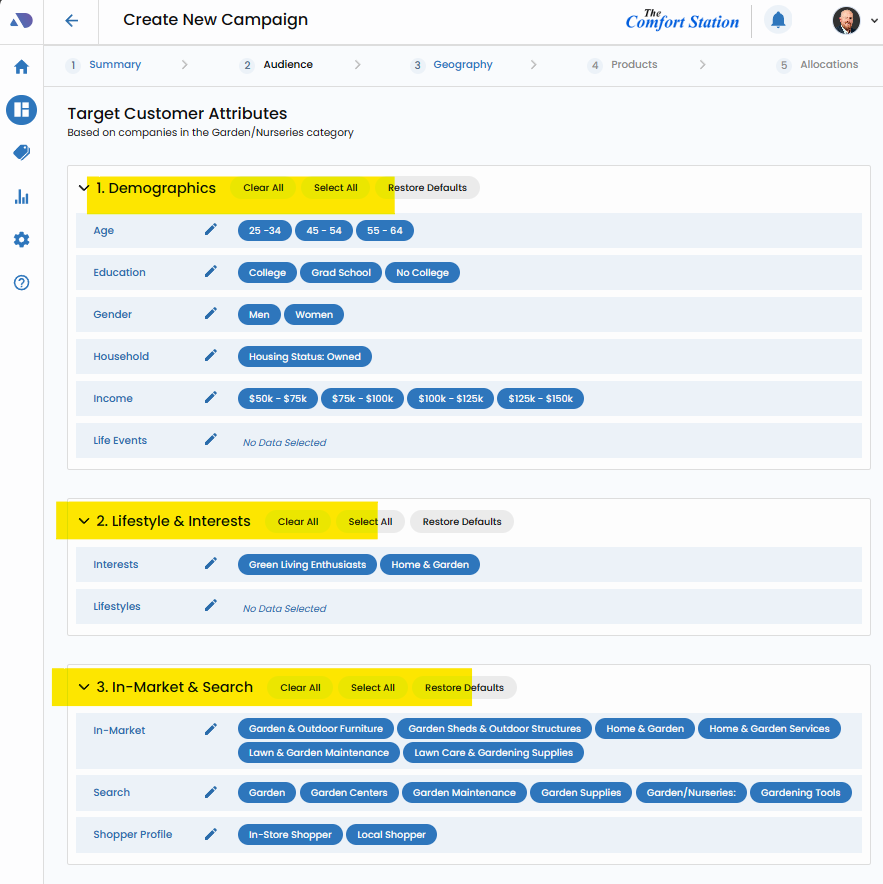
Select the Desired Target Audiences.
Be sure to be accurate, as these will be used for the migrated campaign.
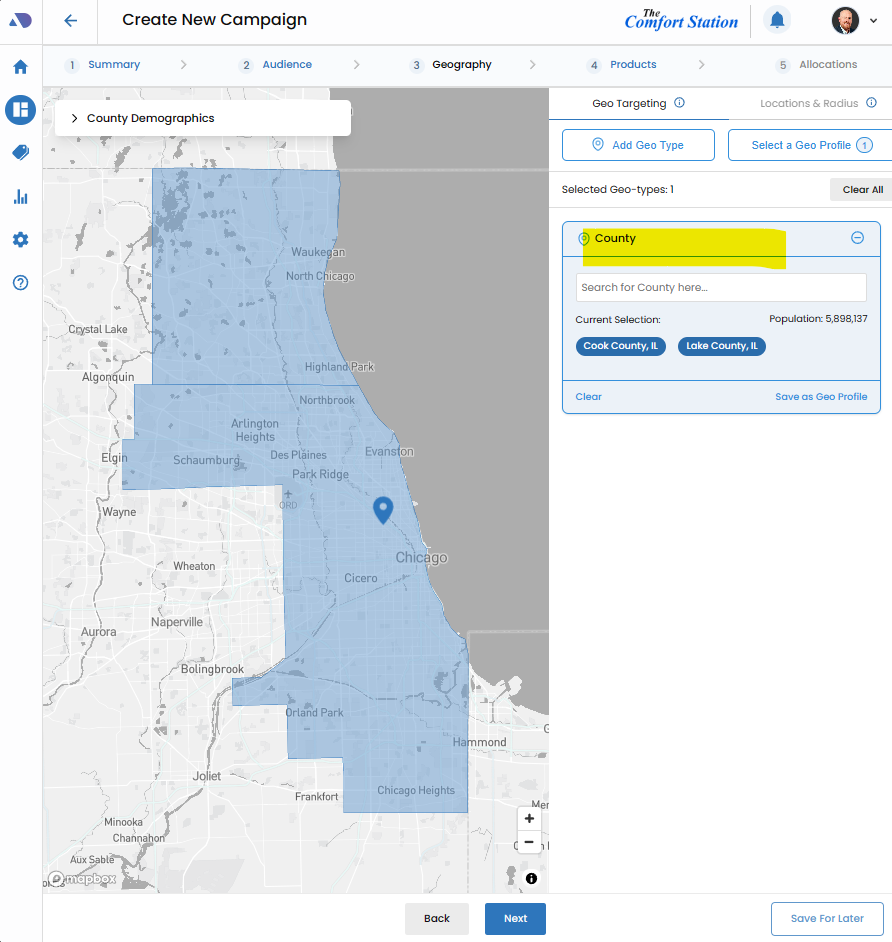
Select the Desired Geotarget.
Be accurate, this will be used for campaign migration.
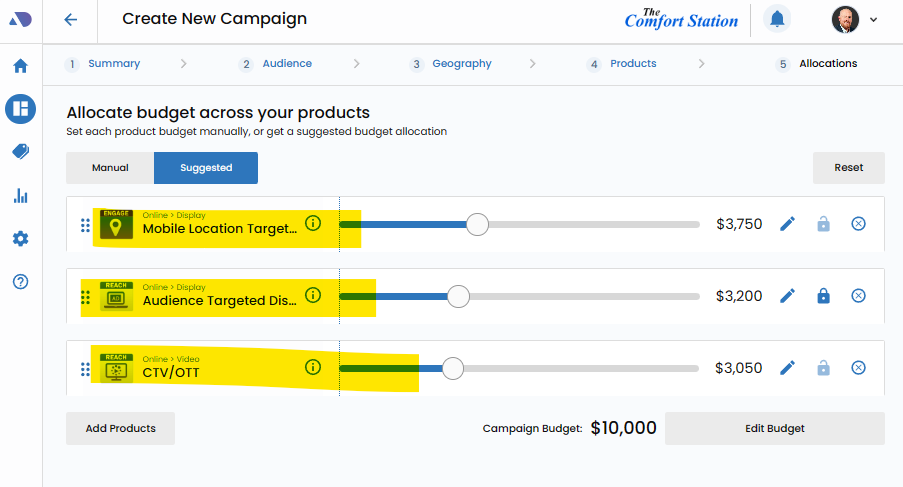
Add the Migrated Product(s).
Ensure that your migrated campaign has the correct products, and the correct budgets for each migrated tactic.
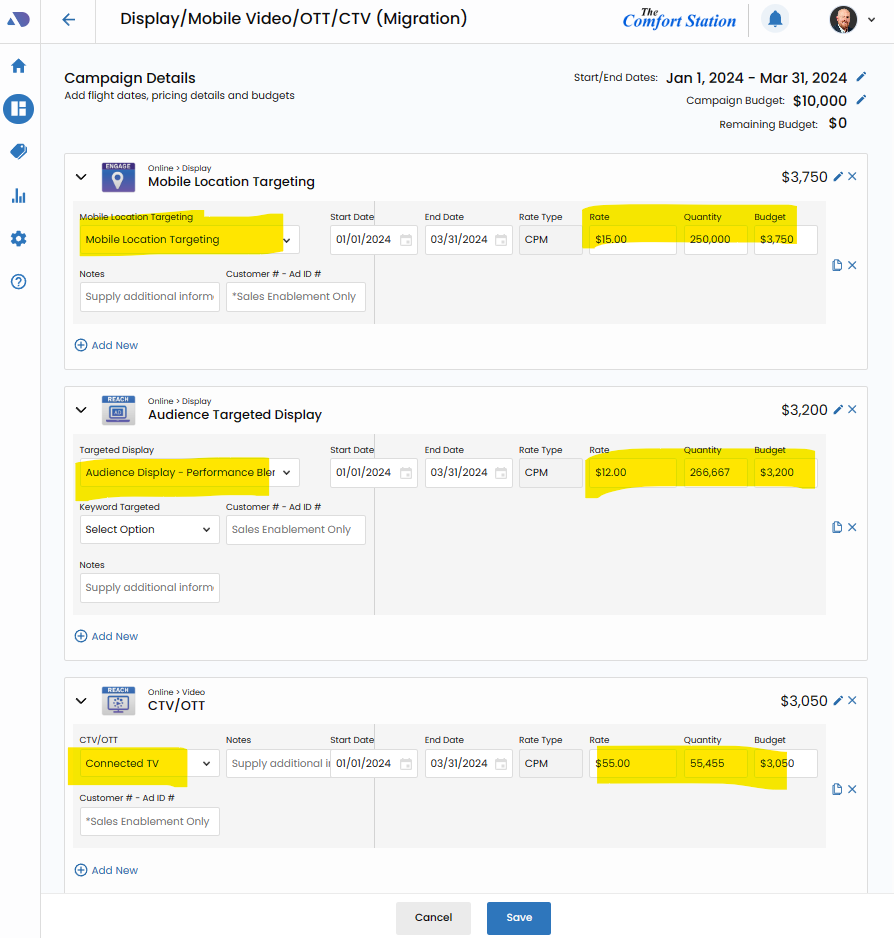
Edit Campaign Details.
Open the campaign details screen and ensure that all information is correct including start date, end date and budget.
Make all nessecary type selections, confirm rate, CPM and impressions match expectation.
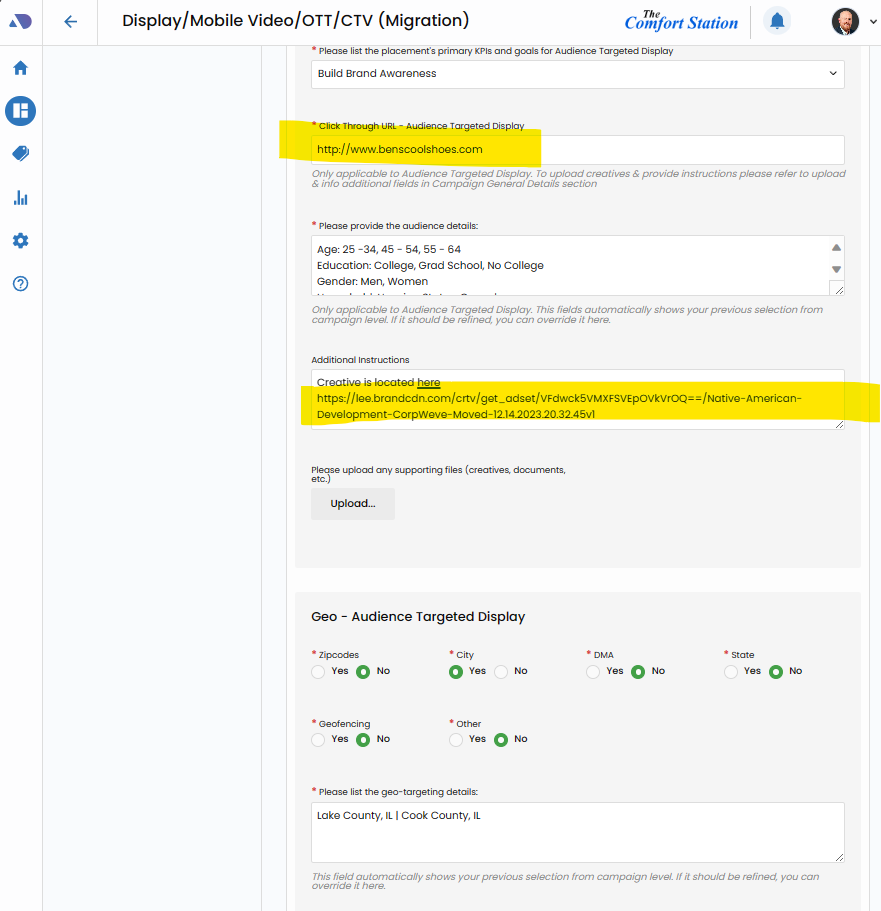
Complete Sold Order Details.
For display, video and streaming campaigns, please ensure that all targeting is correct, click-thru-urls are correct and give a link to where the team can download creative.
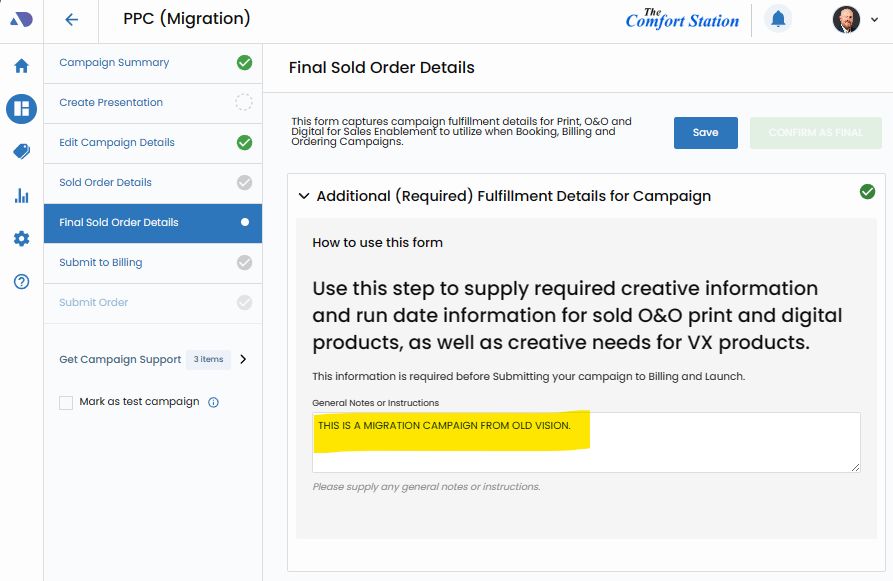
Complete Final Sold Order Details.
Complete the Final Sold Order details by alerting Sales Enablement that this is a migration campaign.
Submit to Billing.
Complete the Submit to Billing step to ensure that Sales Enablement receives the order for billing and launch in VX.

Ensure that Vision 4.0 Campaign is Set to End.
Once you receive confirmation that your VX campaign is scheduled to launch, ensure that the Vision 4.0 campaign has been scheduled to end on the migration launch date.