Play Training
Add A Custom Slide
Number of Guide Steps: 5
Vision VX's commitment to user empowerment is epitomized through the ability to craft custom slides. This feature not only embraces creativity but also streamlines the presentation creation process, enabling users to tell their campaign stories with precision and flair. Whether you're designing a unique visual element or incorporating specific content, the "Add Slide Blank Slide" feature in Vision VX offers a dynamic canvas for your imaginative expressions.

- 1. Add a Custom Slide
- 2. Explore Layout Options
- 3. Input a Custom Slide Name
- 4. Design Your Slide
- 5. Save Your Slide to the Library
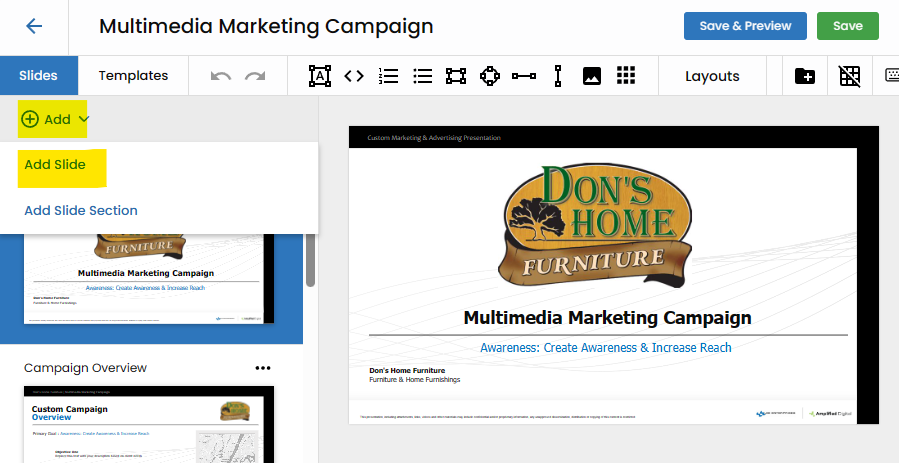
Add a Custom Slide.
To embark on the journey of crafting a custom slide, users can click the "Add" button and then select "Add Slide." This action triggers the creation of a blank canvas, ready to be transformed into a personalized work of art.
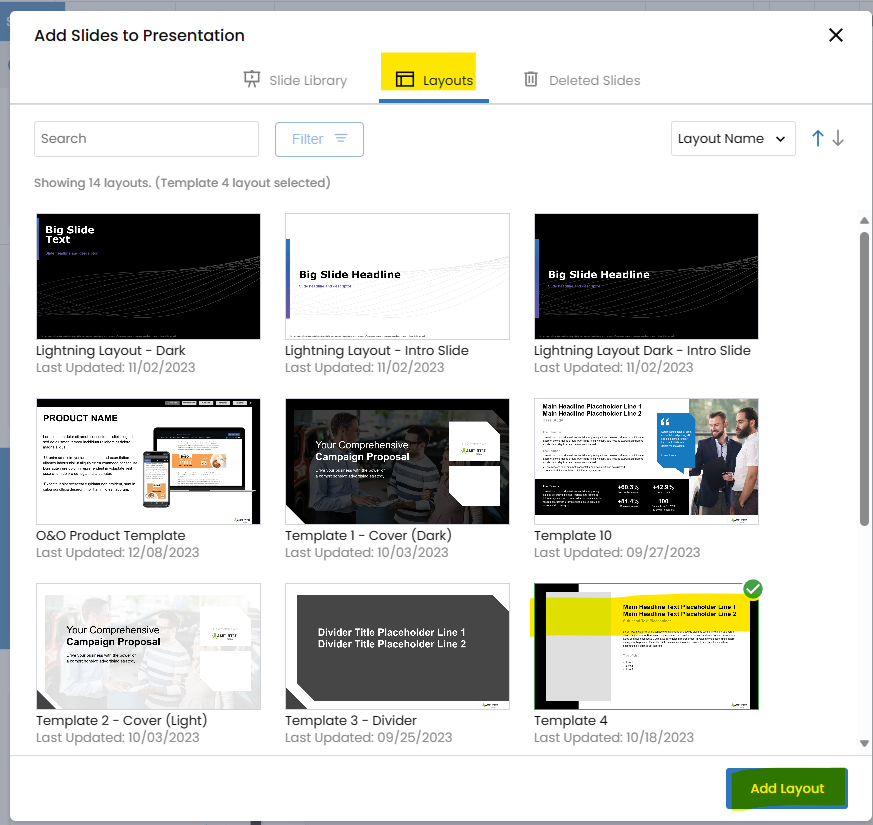
Explore Layout Options.
Navigate to the "Layouts" tab, where a diverse array of layout options awaits. Choose a layout that complements your content and design preferences, setting the visual foundation for your custom slide.
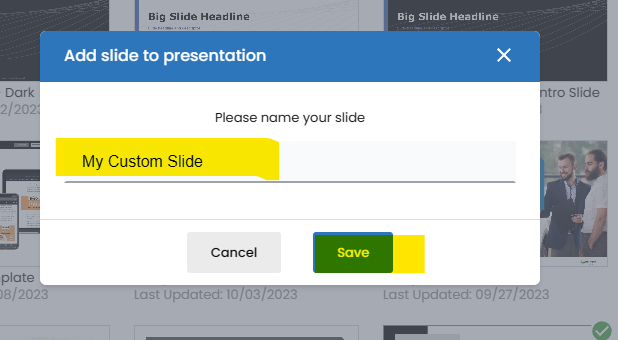
Input a Custom Slide Name.
Give your creation a distinctive identity by inputting a custom slide name. This step not only adds a personal touch but also facilitates easy identification and retrieval within the platform.
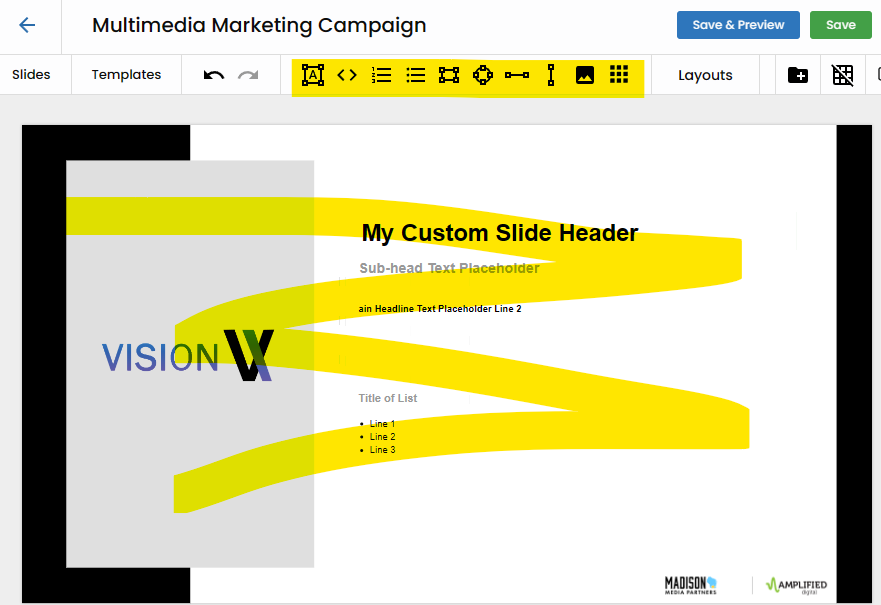
Design Your Slide.
With the canvas and layout selected, dive into the creative process of designing your slide. Vision VX provides a suite of tools, including text, image, and shape manipulation features, allowing you complete control over the aesthetics and content of your custom creation.
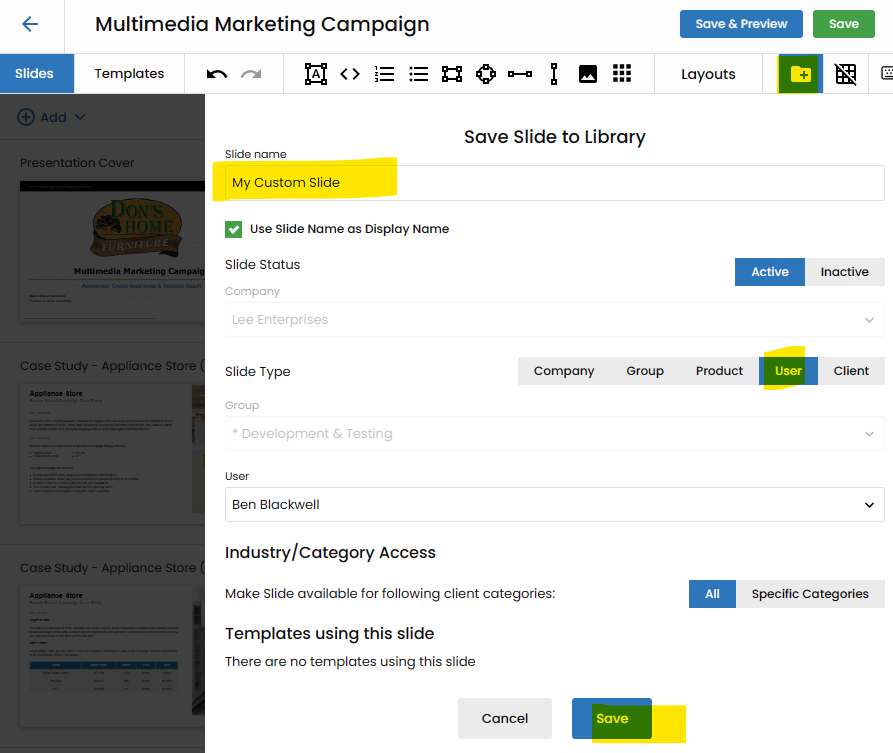
Save Your Slide to the Library.
Once your masterpiece is complete, safeguard it for future use and collaboration by saving it to the library. This ensures that your custom slide becomes a valuable asset within the broader context of your presentations.